
Material
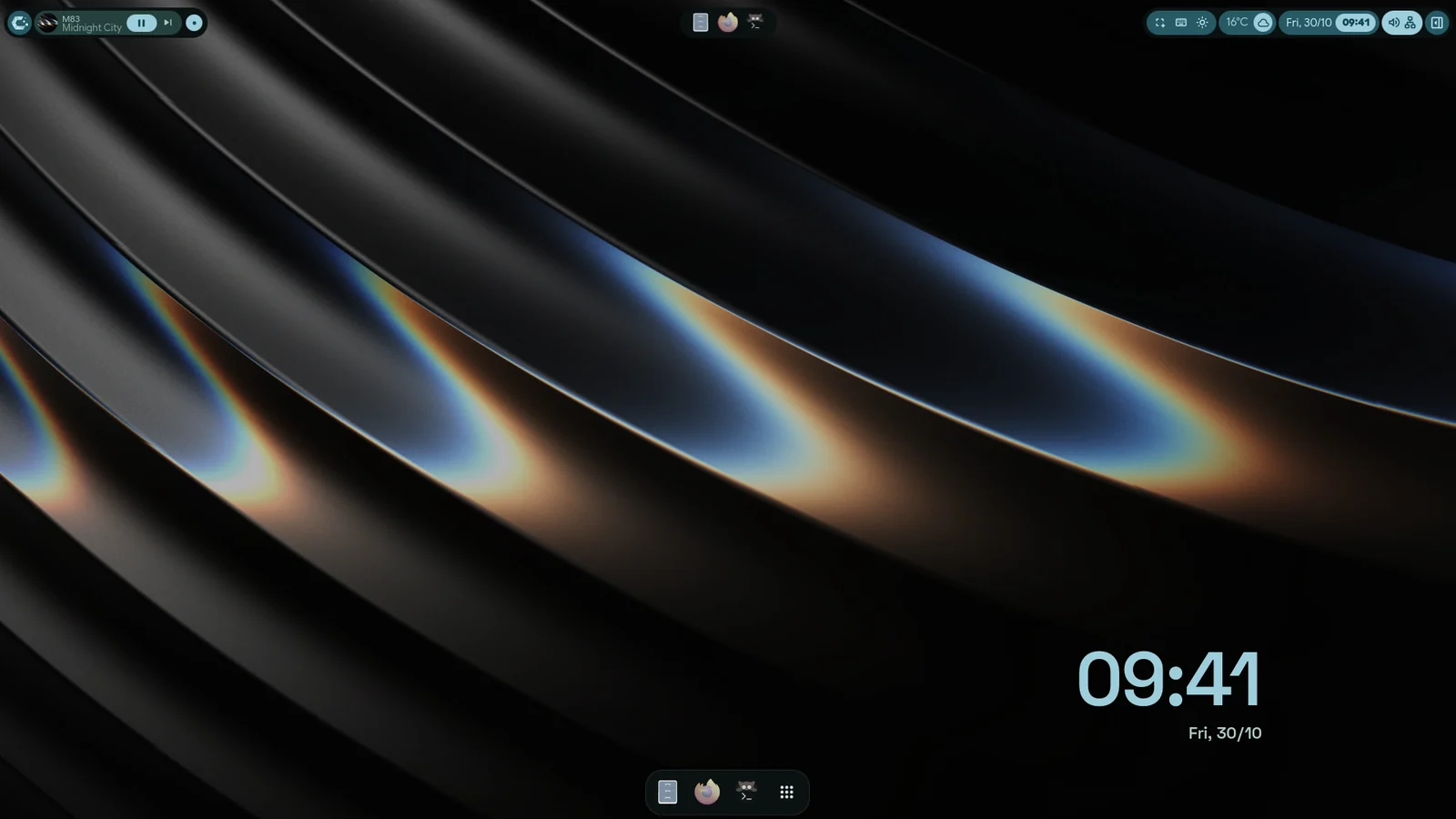
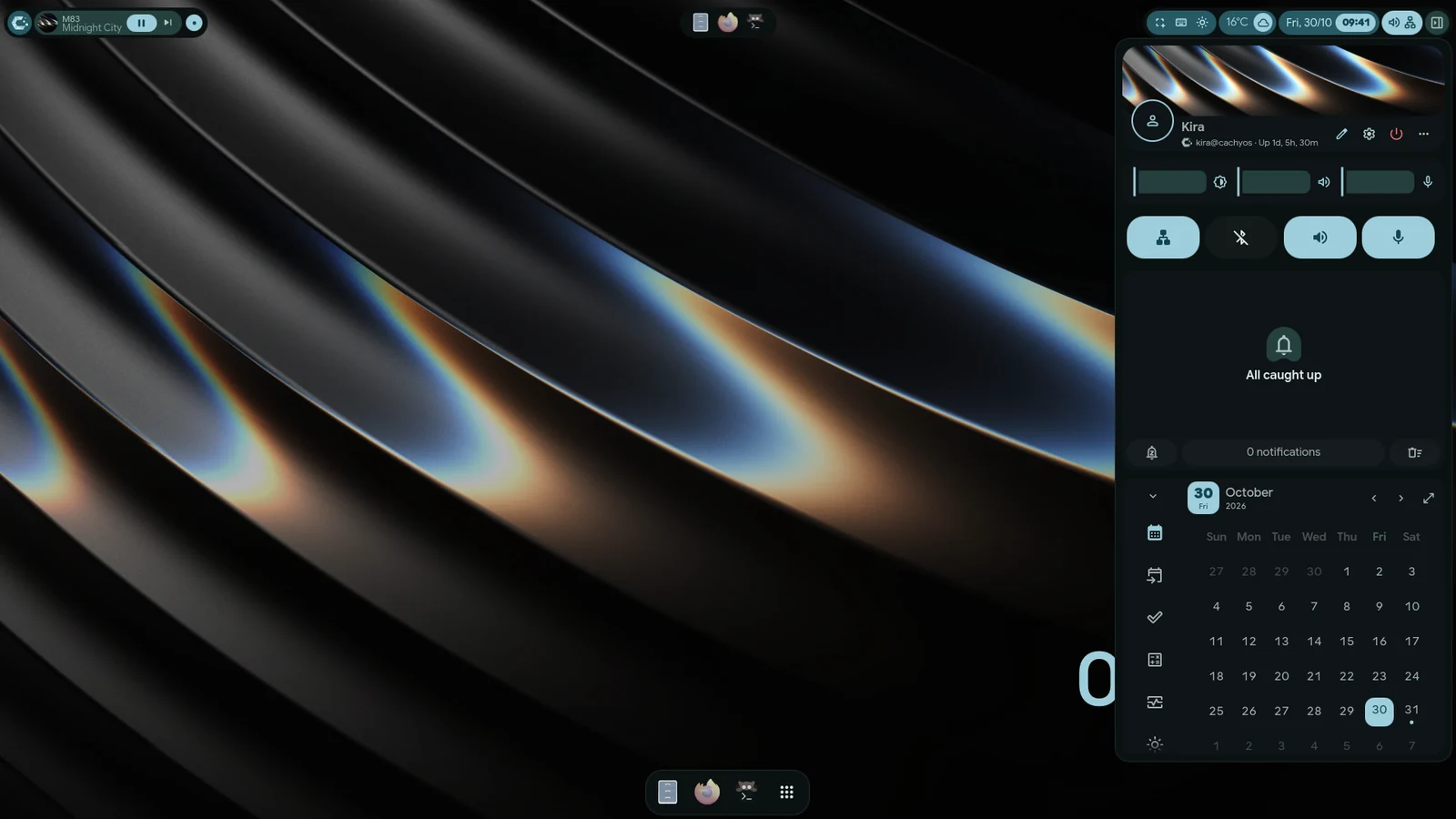
Material (ii) is the default family: a bar on an edge, two sidebars, a dock and an overview, in nine global styles. Everything here is set in Settings, which opens with Super+,.
On your screen
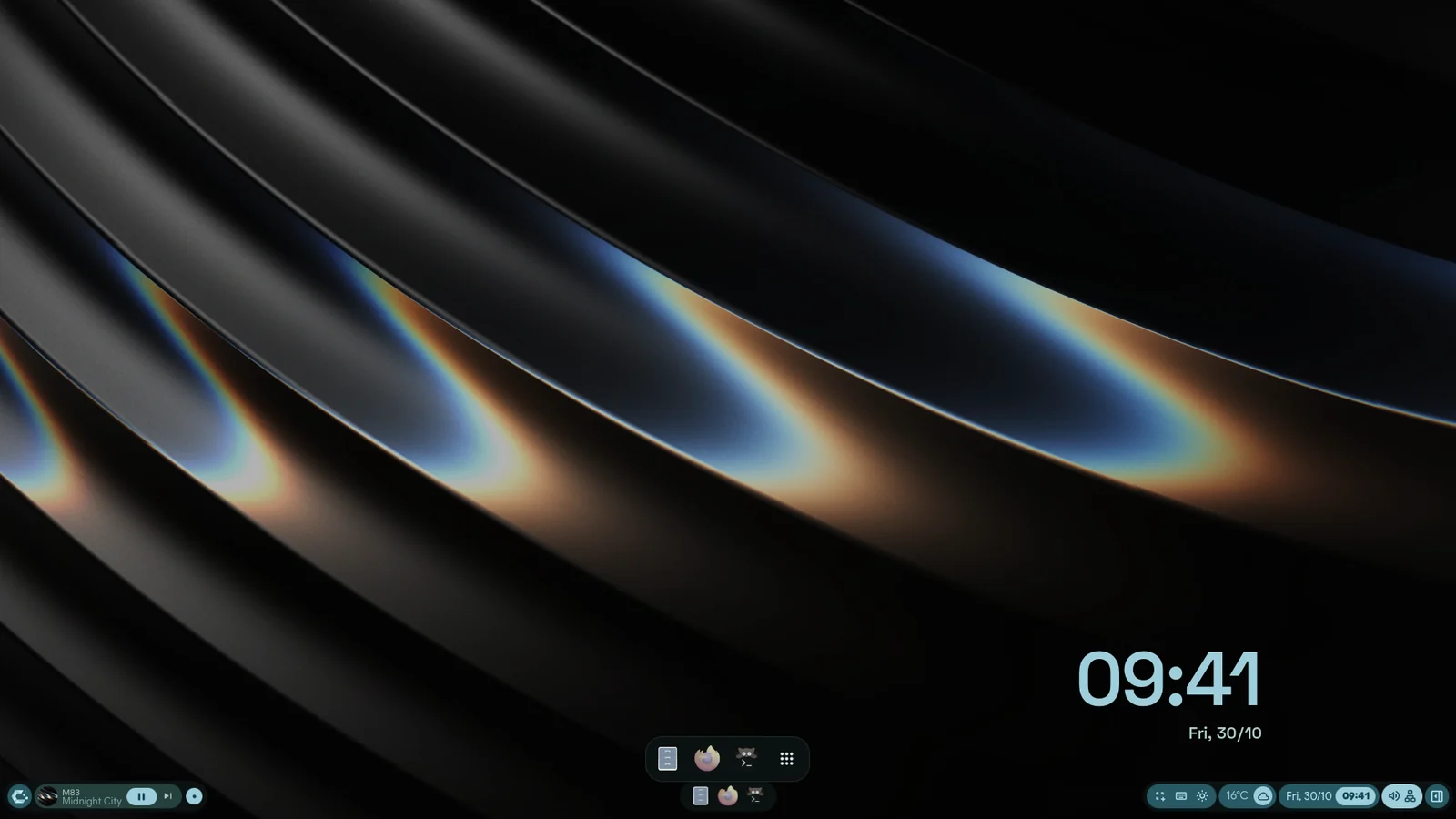
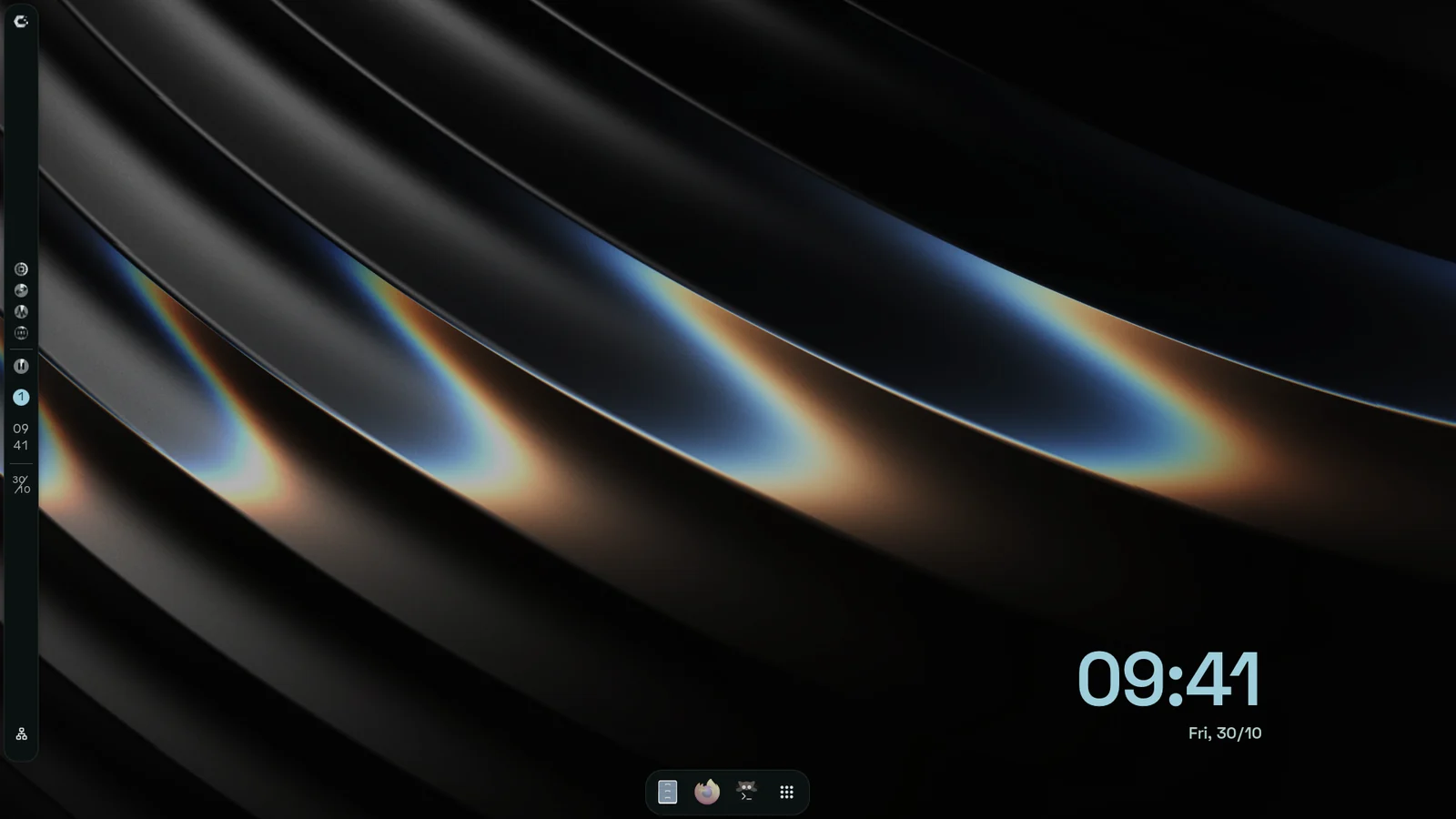
Section titled “On your screen”- Bar: along the top by default. Settings›Quick›Bar position puts it on any edge, and Settings›Bar sets its look, its corners and which modules sit in each of its five zones.
- Dock: Settings›Dock turns it on and sets its position, how it reveals itself and the window previews. A hidden bar or dock opens when the pointer rests on its edge for a moment, not on a quick pass, and stays a little after the pointer leaves.
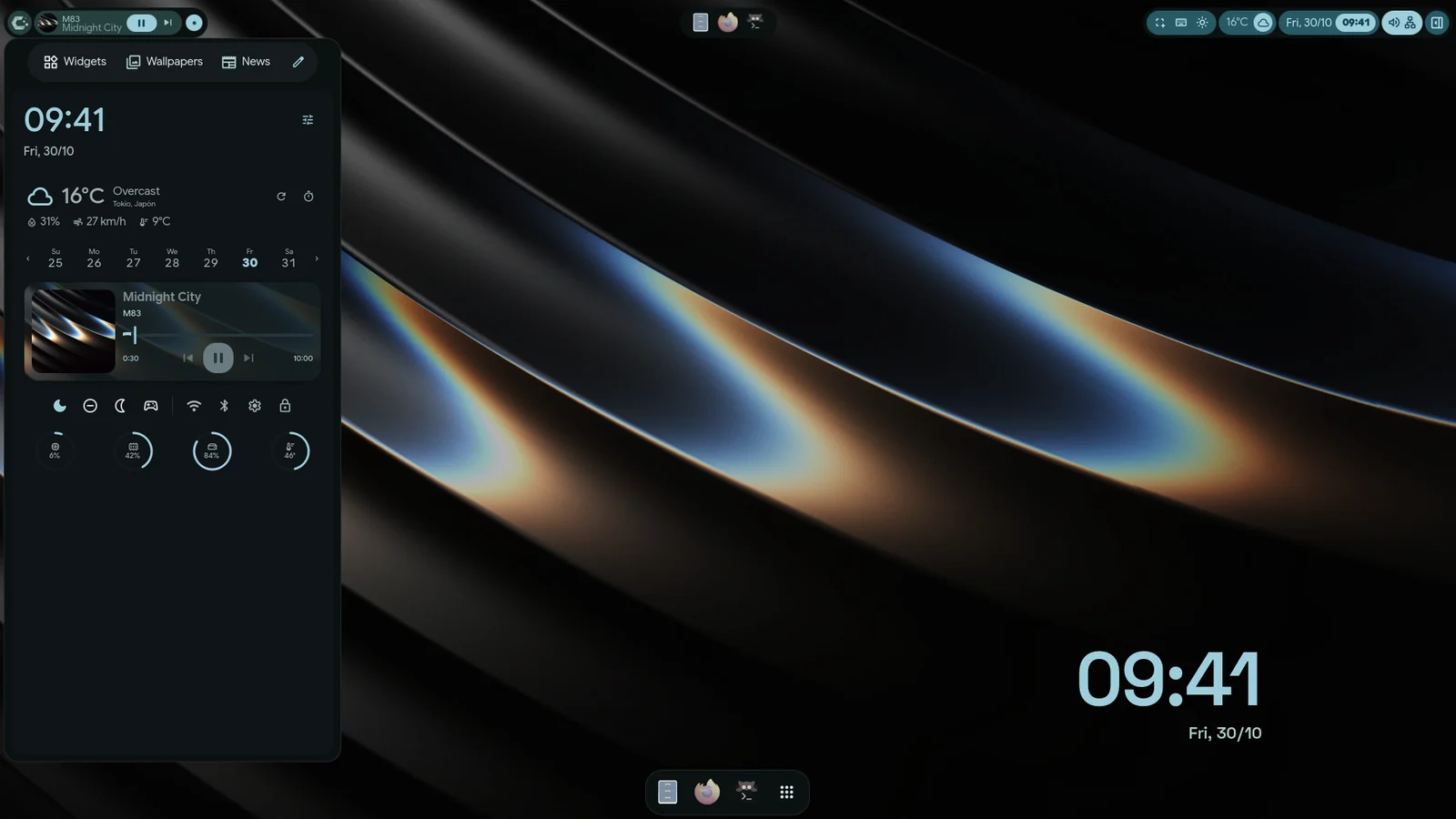
- Left sidebar: AI chat, YT Music, the Wallhaven browser, the translator and the world clock. On iNiR’s runtime
(qs-rs) it can also hold Web Apps (Settings›Sidebars›Web Apps): Discord, YouTube Music and the other web
apps from the Hub. They need Qt WebEngine, a one-time download of about 110 MB that
inir updatebrings while the tab is on. If it is missing, the tab says so and has a Download button. - Right sidebar: quick toggles, sliders, the notification history and the calendar. Both sidebars are arranged in Settings›Sidebars.
- Overview: Super+Space shows your workspaces and searches apps and actions.
- Dashboard, Orbit and the Workspace Strip are optional panels, each with its own page in Settings.
Where things are in Settings
Section titled “Where things are in Settings”The sidebar groups the pages. The pencil at the top of the list (Arrange at its foot in the classic design), or Settings›Arrange, reorders or hides them; hidden pages stay in search.
| Group | Pages |
|---|---|
| Essentials | Quick (wallpaper, colours, bar position, Game Mode), Hub |
| Appearance | Themes, Effects, Wallpaper, Widgets, Ricelin |
| Shell | Bar, iRiS, Shell Layout, Orbit, Panels, Dock, Sidebars, Dashboard, Modules, Waffle Style, Workspace Strip, Mascot, Arrange |
| System | System (audio, battery, language), AI, Services, Tools, Compositor, Monitors, Advanced, Autostart |
| Reference | Shortcuts, About |
Easy mode shows only the essential pages and sections: Modules › Interface › Settings UI, or the tune button in the classic header.
Settings comes in two designs with the same pages and options. Expressive (the default) gives each setting its own tile beside a wide list of pages; Classic is the window of v2.33: a header with your picture, the search and the actions, a slim list of pages, and every section in its own card. The history button switches between them, at the top of the page list in Expressive and in the header in Classic; Modules › Interface › Settings UI › Design holds the same choice.
Its looks
Section titled “Its looks”Settings›Themes›Global Style changes the whole family at once: Material, Cards, Aurora, Inir, Angel, Regalia, ZZZ, Cookie Shapes or Editorial. Some styles bring their own editor on the same page. Colours follow the wallpaper or a colour theme: Colours and themes.
Common changes
Section titled “Common changes”- Move everything around by hand: Settings›Shell Layout.
- Desktop widgets and their grid: Settings›Widgets. While you arrange widgets (from the desktop’s menu), a selected widget shows grips on its right and bottom edges. A month, the upcoming list, notes, to-dos, vitals, uptime, the day’s progress, the date, the ticker, the visualizer, a picture, a shape and the editorial cards take any width and height there and lay themselves out in it, as in v2.33; letting go picks the size (S, M or L) whose layout fits the box. Every other widget grows or shrinks whole. S, M or L in its bar puts the plain size back. iRiS’s own widget faces keep their three sizes.
- Blur, glass and animations: Settings›Effects. See Optimization.
- Notifications, Alt+Tab and the floating tools (Super+G): Settings›Panels. In Alt+Tab, Tab and the arrows move the pick and the window switches when you let go of Alt or press Enter; Esc leaves focus where it was. With Alt still held, the auto-hide delay switches to the pick on its own.
- Kira, the mascot: Settings›Mascot.
- Clipboard history: Super+V opens it (it needs
cliphist); Settings›Modules turns the panel on or off. - Screenshots, text and recording: Super+Shift+S opens the region toolbar. Where files go, the snip and the recording sound: Settings›Tools.
- Lock screen: Super+Alt+L locks; Settings›System›Lock screen sets what it shows.
- Weather: Settings›Services›Weather (place, units, how often it refreshes).