
Make it yours
Everything in iNiR can be changed, and almost all of it from Settings. This page lists every way, from the easiest to the deepest. Start at the top. Most people never need to scroll past the first three.
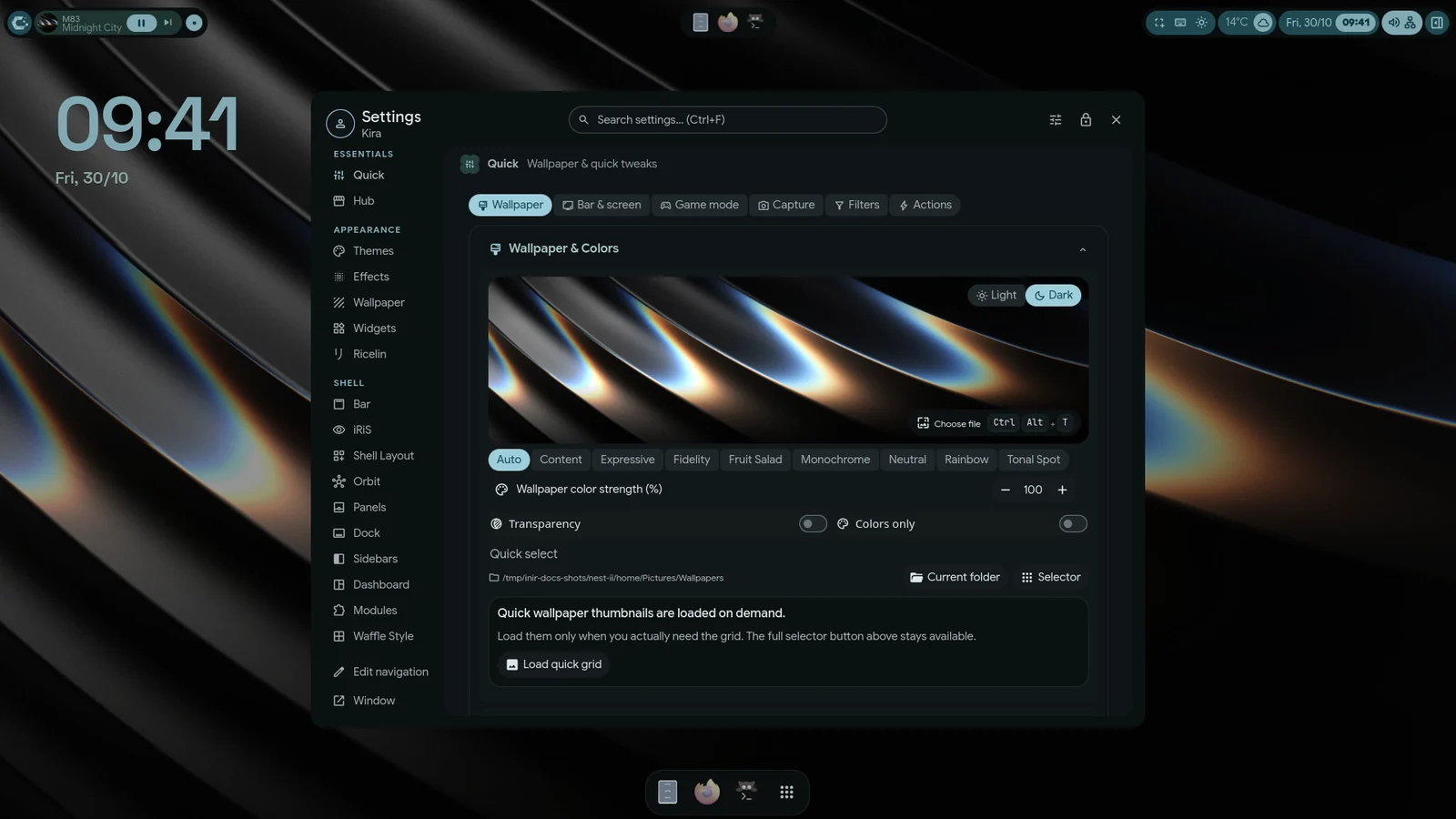
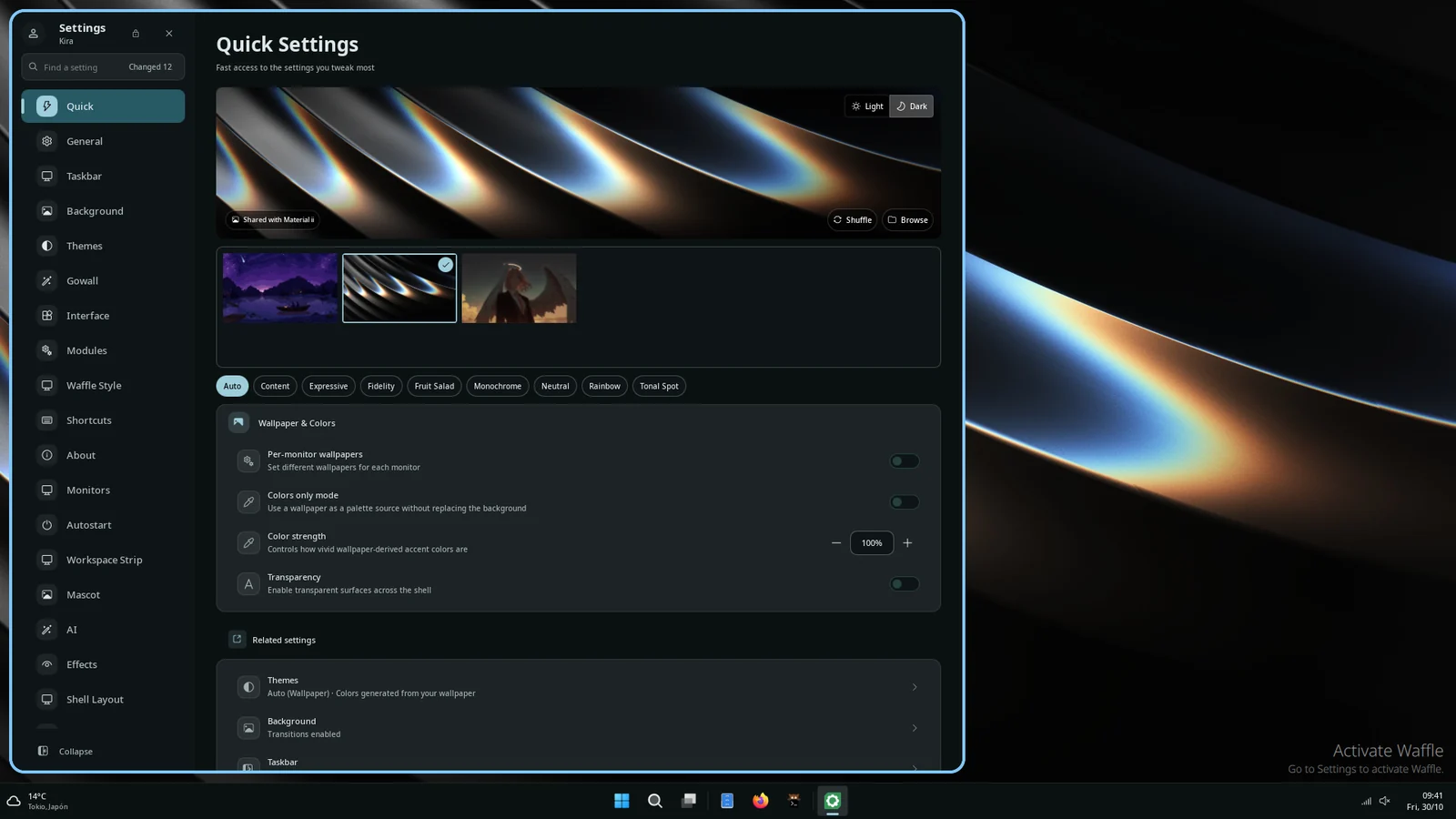
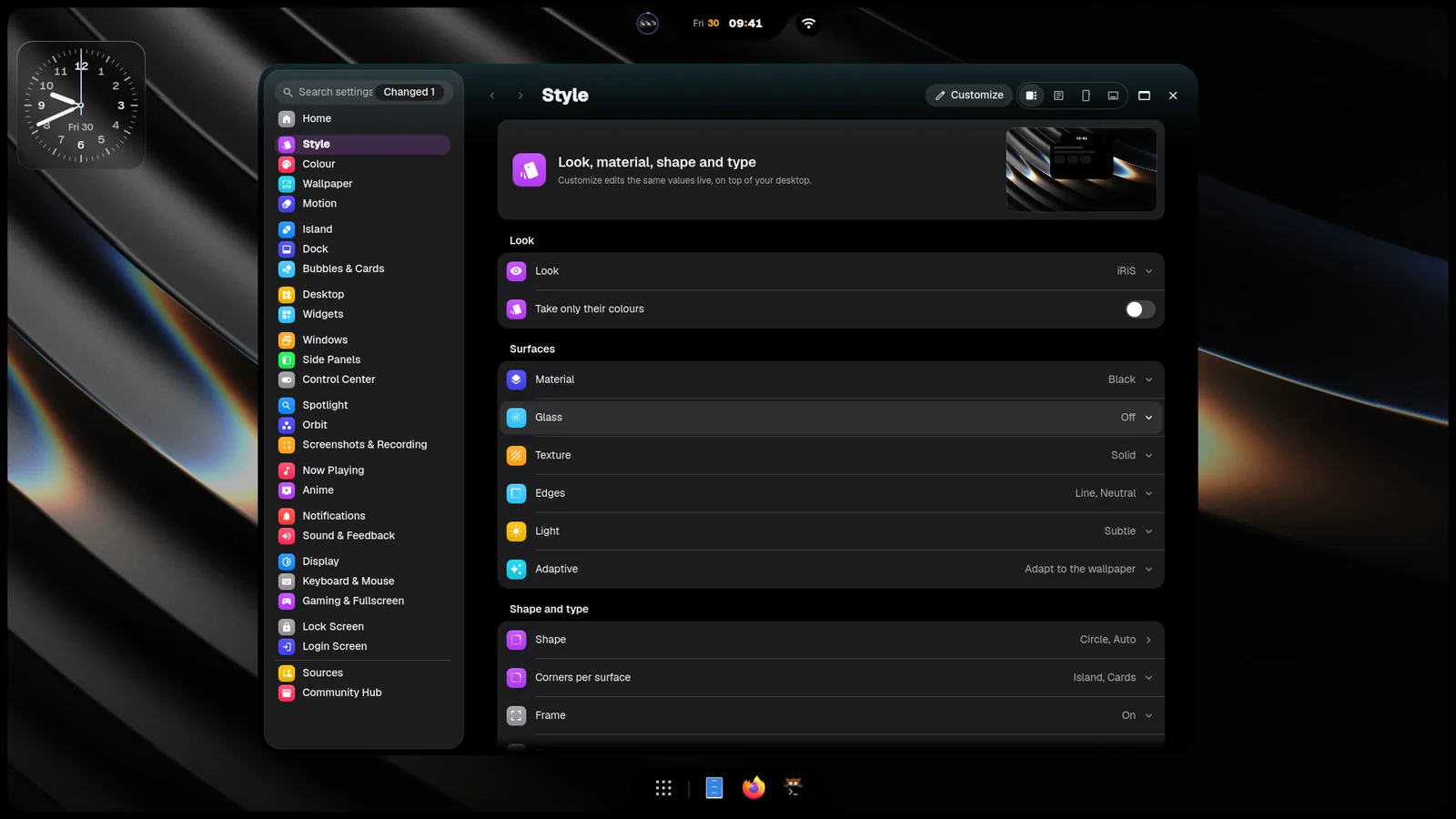
Settings
Section titled “Settings”Settings holds every option of your family, each with a short description of what it does.
- Super+, opens it in any family. Ctrl+F searches every option by name, description and keywords, and takes you to it.
- Material: Settings opens over the desktop with a live preview, or as a window. Easy mode shows only the essentials.
- Waffle: Waffle Settings is its own window, laid out like Windows 11’s.
- iRiS: iRiS Settings opens over the desktop and previews each change on the screen behind it. Most options show a small picture of what they do.
How each one is organised: Settings.
On the desktop
Section titled “On the desktop”Some things are easier to change where they sit.
- iRiS: right-click the desktop and pick Customize iRiS. The Island grows a capsule with Themes, Look and Pieces, plus undo, redo and Done.
- Material: Settings›Shell Layout moves the bar, the dock and the sidebars right on the desktop. Settings›Widgets›Edit Mode arranges the desktop widgets, with a grid to snap to. The desktop shrinks into a card while you do; turn off Shrink the desktop while editing to arrange them in place, at full size. Picking a widget opens its sheet beside it, with the same three pages in Material and iRiS: Widget (what it shows), Look (background, corners, colours) and Arrange (scale, position, lock). A stack adds its own page. The background key on the widget’s capsule turns its plate on and off, and it’s the same setting as the Look page.
- Waffle: Waffle Settings›Shell Layout places the taskbar.
While you drag anything (a widget, a window in the overview, a row in a Settings editor), Esc puts it back where it was and saves nothing. Long lists scroll by themselves when you hold a row near their top or bottom edge.
Shortcuts to apps, files and links live on the desktop too: Desktop items.
The whole look
Section titled “The whole look”- Super+Shift+W switches the family: Material, Waffle or iRiS. See Panel families.
- Material: Settings›Themes›Global Style has nine styles: Material, Cards, Aurora, Inir, Angel, Regalia, ZZZ, Cookie Shapes and Editorial.
- Waffle: Waffle Settings›Themes›Global Style takes the same styles’ colours and type and keeps Waffle’s layouts.
- iRiS: iRiS Settings›Style›Themes holds curated looks for the whole family. Save current keeps the look you have as your own theme.
Colours
Section titled “Colours”By default the shell and your apps take their colours from the wallpaper. You can also pick one of 48 colour themes, build your own, and choose which apps follow: terminals, browsers, Discord, Spotify, Steam, editors and more. See Colours and themes.
Wallpaper
Section titled “Wallpaper”Ctrl+Alt+T opens the wallpaper picker. Rotation, one wallpaper per monitor, videos and the overview backdrop are on Wallpaper.
More from the Hub
Section titled “More from the Hub”Widgets, colour themes, iRiS themes and web apps made by people who use iNiR, one click to install and one to remove. The three families come from there too. See Hub.
Your own shortcuts
Section titled “Your own shortcuts”- Material: Settings›Shortcuts lists every keybind and Add keybind makes a new one.
- Waffle: Waffle Settings›Shortcuts, the same list.
- iRiS: iRiS Settings›Home›Keyboard shortcuts lists every keybind, with search.
- From a terminal,
inir bind Mod+O orbit toggleshows what those keys do now, andinir bind --add ...saves the bind. Niri picks it up at once.
The binds you write by hand go in ~/.config/niri/config.d/90-user-extra.kdl. Updates never touch that file. Every
shortcut that ships: Keybinds.
Displays, input and windows
Section titled “Displays, input and windows”Niri draws the windows; iNiR gives it a Settings page. Settings›Compositor sets monitors, resolution, scale, keyboard, touchpad, mouse, gaps, borders and window rules. See Compositors.
The files underneath
Section titled “The files underneath”~/.config/inir/config.jsonholds every setting. Settings writes it for you, and the shell reloads when the file changes, so an edit by hand shows at once.~/.config/niri/config.d/holds Niri’s settings, one file per area. See Compositors.
Commands and scripts
Section titled “Commands and scripts”Everything the shell does can be called from a terminal, a keybind or a script: inir <target> <function>. For
example inir overview toggle, or inir wallpaperSelector toggle. inir help lists them all. See
IPC and Global actions.
Build your own
Section titled “Build your own”Widgets, iRiS pieces, colour themes and web apps are plugins, and the Hub takes contributions. The contributing guide has a template for each kind. How the pieces fit: How iNiR fits together.